Voice Notes in Luma: Browser Dictation vs. Record-and-Transcribe
An honest look at how voice note capture works: live browser dictation vs. recording and transcribing afterward, including Luma’s real capabilities and limits.
Voice notes let you capture an idea by talking instead of typing. This guide compares the two real approaches you'll run into — quick browser dictation (like Luma's) and record-then-transcribe apps — and is honest about what each can and can't do. It's written by the Luma team, so treat it as our own guide rather than an independent lab test: we haven't run blind accuracy benchmarks against competitors, and we're not going to pretend otherwise.
Two different things people call 'voice notes'
1. Live dictation. You tap a mic button, talk, and words appear as text while you speak. This is how Luma's voice input works: it uses the browser's built-in SpeechRecognition API. There's no separate app to install — it's a feature of the browser itself.
2. Record now, transcribe later. You record an audio file first, then a separate transcription pass (on-device or cloud) turns it into text afterward. iOS dictation and voice memos, and Microsoft's dictation feature in OneNote, both work roughly this way for longer capture. See Apple's own explanation of dictation on iPhone and Microsoft's guide to dictating notes in OneNote.
Neither approach is universally 'better' — they trade off differently, and which one helps you depends on how you actually capture notes.
How Luma's voice input actually works
Luma's mic button calls the browser's SpeechRecognition API to turn speech into text inside the editor. That has real implications worth knowing before you rely on it:
- Browser support varies. SpeechRecognition is well supported in Chrome and Chromium-based browsers; support is inconsistent or missing in some other browsers, so the mic button may not appear or work everywhere.
- It needs microphone permission. Your browser will prompt you the first time; if you deny it, dictation can't run.
- It usually needs a network connection. Most implementations, including Chrome's, send audio to a remote speech service to generate text, rather than doing everything on-device. If you're offline, dictation typically won't work.
- It's built for short, live capture, not long recordings. There's no background recording or hours-long meeting capture — it's meant for jotting a note while your hands are busy, not replacing a dedicated recorder.
- Accuracy isn't fixed or guaranteed. We don't publish an accuracy percentage or a supported-language count, because it depends on the browser's underlying service, your accent, background noise, and connection quality. Always skim what it wrote before you rely on it.
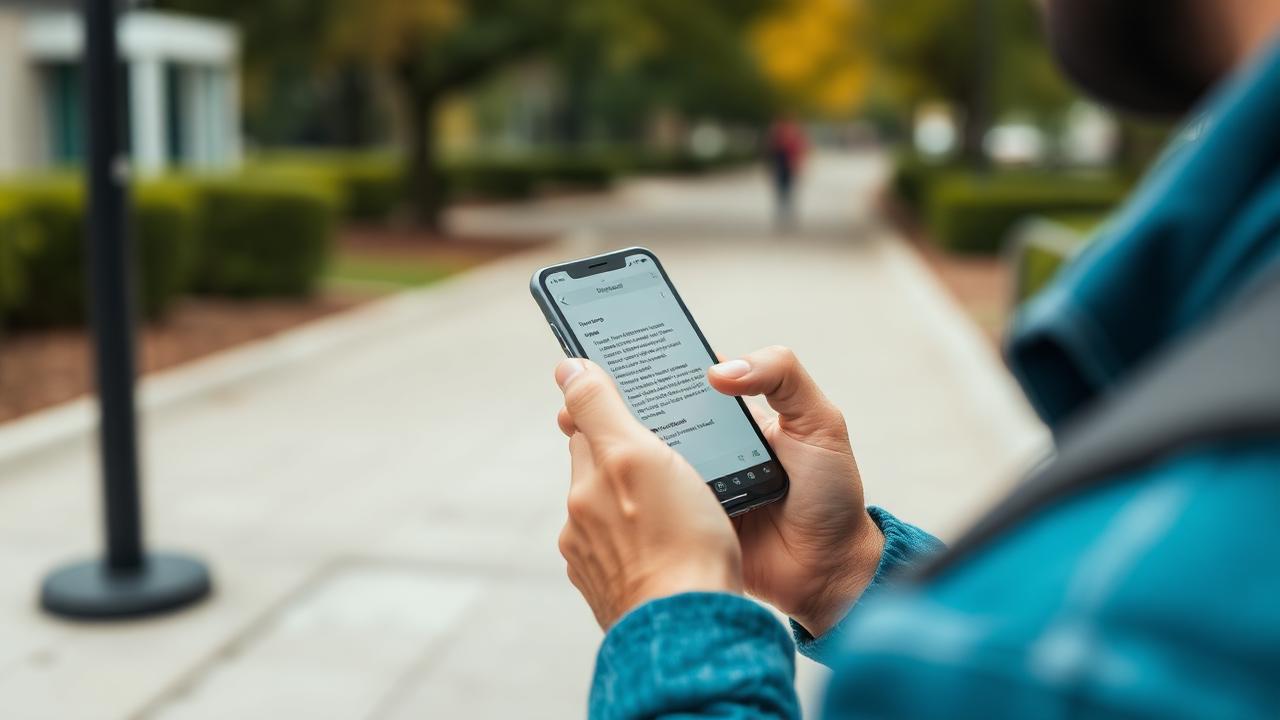
None of this makes dictation useless — for capturing a thought while walking to class or between meetings, it's fast. It just isn't a substitute for a dedicated recording-and-transcription workflow when you need a verbatim record of a long meeting or lecture.
Browser dictation vs. record-and-transcribe: the real trade-offs
| Live browser dictation (e.g. Luma) | Record, then transcribe (e.g. voice memos + a transcription pass) | |
|---|---|---|
| Setup | None — tap the mic in a supported browser | Record first, transcribe as a separate step |
| Best for | Short thoughts, quick capture, drafting | Long lectures, meetings, interviews |
| Works offline | Generally no (needs a network connection) | Recording itself usually works offline; transcription may still need a connection |
| Editing | Text appears live, edit immediately | You review a finished transcript afterward |
| Length limits | Meant for short bursts, not hours of audio | Better suited to long-form audio |
Neither column is 'the winner' — pick based on what you're capturing. A lot of people end up using both: dictation for fast notes throughout the day, and a separate recorder for anything long enough that you'd want a verbatim backup.
A practical workflow: capture → correct → summarize → study
- Capture. Talk through your idea using Luma's mic button and let the words land in the editor as a rough draft.
- Correct. Skim immediately afterward and fix any misheard words or missing punctuation — dictation output is a draft, not a final copy.
- Summarize. Turn the corrected note into headings and bullet points, or ask Luma's AI assistant to help tighten it up (within your plan's daily AI action limit).
- Study. Turn the cleaned-up note into review material with Notes to Flashcards, or drop the structure into a Cornell notes template and browse more layouts on the templates page.
Tips that actually help accuracy
- Speak in a normal, steady pace — rushing or trailing off hurts recognition more than accent does.
- Reduce background noise where you can; fans, traffic, and crosstalk are the most common causes of garbled text.
- Say punctuation out loud ('comma', 'new line') if your browser's implementation supports it, or add punctuation afterward.
- Always proofread before you rely on the note — no dictation tool, including Luma's, guarantees a specific accuracy rate.
- If you're offline or need a long, verbatim recording, use your device's voice recorder instead and transcribe afterward.
Frequently asked questions
Is this an independent test of every voice app? No. This is Luma's own guide to how voice capture works, including plain limits of our own dictation feature. We haven't benchmarked accuracy against other apps and don't publish scores or rankings.
Does Luma's voice input work offline? Not reliably. It's built on the browser's SpeechRecognition API, which generally needs a network connection because the audio is typically processed by a remote speech service.
Will voice input work in every browser? No — support for the SpeechRecognition API differs by browser, so the feature may be unavailable in some. Check the MDN SpeechRecognition docs if you want the technical detail.
Can I record long meetings with Luma's mic button? It's designed for short, live capture rather than long background recordings. For long-form audio, use your device's dedicated voice recorder and transcribe or paste the text into Luma afterward.
Do I need to buy anything to try dictation in Luma? No — voice input is available on Luma's free plan (50 notes, 5 AI actions a day, 10 on your first day), and no card is required to sign up.
Bottom line
Live dictation and record-then-transcribe solve different problems. Luma's mic button is genuinely useful for fast capture in a supported browser with a network connection and microphone access — just don't expect it to work offline, support every browser, or replace a dedicated recorder for long sessions. Capture the rough idea, correct it, then turn it into study material with Notes to Flashcards or a Cornell notes template.
Luma Editorial Team
• EditorialLuma's editorial team researches and writes these guides based on publicly available information, hands-on use of Luma and other apps, and reader feedback. Articles are reviewed and updated periodically to keep pricing and features accurate.
Get Weekly Productivity Tips
Join 5,000+ readers getting actionable note-taking strategies every Tuesday.
No spam. Unsubscribe anytime. We respect your privacy.
Ready to Apply These Tips?
Try Luma's AI-powered note-taking app free for 7 days. No credit card required.
Related Articles
Best Note-Taking Apps 2026: Top 10 Ranked & Reviewed
Comprehensive review of the top 10 note-taking apps in 2026. Compare features, pricing, and find the perfect app for students, professionals, and creatives.

Note-Taking Privacy & Security: Complete Guide 2025
Comprehensive guide to securing your digital notes. Learn about encryption, privacy risks, threat models, and how to protect sensitive information in note-taking apps.
9 Best ADHD Time Management Apps (2026) — Tested 6 Months
We tested 9 time management apps built for ADHD brains over 6 months. Compare Tiimo, Sunsama, Todoist, Focusmate and more on time blindness, capture speed and price.
Best ADHD Planning App in 2026: 7 Planners Compared
Which planner app actually works with an ADHD brain? We compare 7 ADHD planning apps on visibility, capture speed and setup cost — plus a 15-minute setup that sticks.